

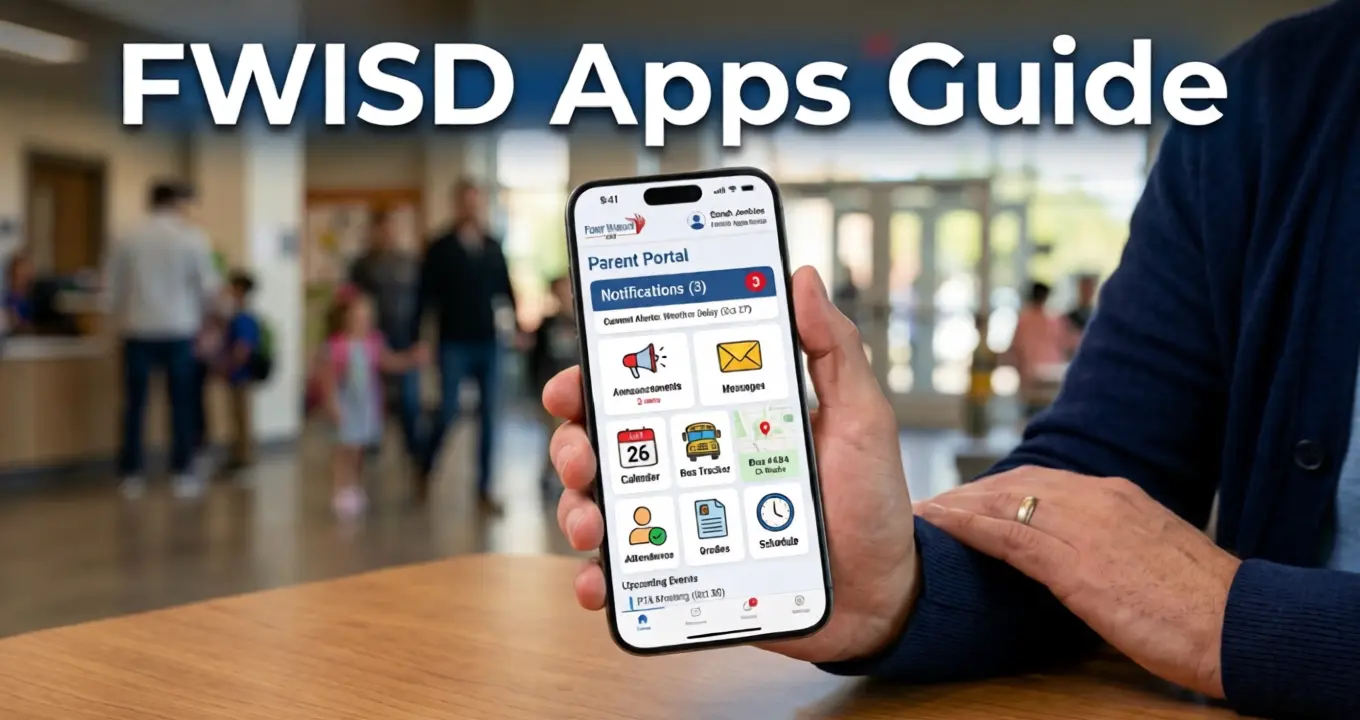
I remember the first time a Fort Worth ISD parent asked me, “Which app am I even supposed to use?” It’s a fair question. Between the district app, ClassLink, Stopfinder, and the athletics app, FWISD apps can feel scattered if nobody walks you through them first.
This guide fixes that problem once and for all. You’ll learn what each FWISD app actually does, who it’s built for, and how to get logged in without the usual headaches parents run into every August.
Whether you’re a parent checking grades, a student joining a class link, or a fan tracking Friday night football, there’s a specific app made for you, and I’ll walk you through exactly which one fits your situation best.
What Are FWISD Apps?
FWISD apps are the official digital tools built or approved by Fort Worth Independent School District to connect students, parents, and staff to daily school life. They cover four main jobs: sharing district news, giving students access to classroom software, tracking school buses, and following sports.
Fort Worth ISD serves over 67,000 students across 134 campuses, so a single website simply can’t handle every family’s needs at once. That’s why the district split things into separate, purpose-built apps instead of cramming everything into one clunky platform that tries to do it all.
Each app has a narrow, focused job, which actually makes them easier to use once you know which one applies to your household, and that’s really the entire idea behind the split. Once you match the right tool to the right task, the whole system starts to feel far less overwhelming than it does on day one.
Why FWISD Apps Matter for Families
Here’s what I found after talking to several parents: the families who use FWISD apps consistently catch problems earlier than those who don’t. A missed bus notification, a dropped assignment, or a last-minute schedule change shows up in real time instead of surfacing at the end of the semester.
Ever wondered why some parents seem to always know about early dismissals before the school email even arrives? They’re using the notification settings inside the district app correctly. Students benefit too, since ClassLink gives them one single login instead of ten separate passwords for different learning platforms scattered across the district.
For a district managing nearly 5,000 teachers and thousands of daily schedule changes, that kind of instant, personalized communication genuinely matters for keeping busy families in the loop instead of finding out about changes secondhand from another parent.
The Official Fort Worth ISD App
The Fort Worth ISD app, available free on both iOS and Android, is the front door for most families in the district. It gives you district and campus news, a district tip line, and notifications you can fully customize by school and interest.
Parents and students can view grades, assignments, and attendance directly from the same single app without switching platforms.You can also browse the full staff directory and set your interests so you only see updates relevant to your child’s specific campus.
A common complaint in app store reviews is that school selections don’t always save between sessions, so if your lunch menu disappears, try re-selecting your child’s school again in settings, since that usually clears it up quickly. It’s a small annoyance, but knowing the fix ahead of time saves a frustrating scroll through every school in the alphabet.
Accessing ClassLink and the My FWISD Portal
ClassLink, reached at fwisd.org/myfwisd, is the single sign-on hub students use to reach every classroom app at once. Here’s the process: open the Fort Worth ISD homepage, hover over Students, then click Students Home from the dropdown menu. From there, select “MY FWISD ClassLink Portal,” which opens the login page in a new browser window.
Students sign in with Microsoft using their district email, formatted as their student ID followed by @stu.fwisd.org, then enter their assigned password. Once inside, the App Library icon in the top corner reveals every approved learning tool your school has unlocked for you.
If apps look outdated or missing, sign out completely and sign back in again, since that refresh reliably pulls the newest version of every tool added recently. It’s a small habit worth building early in the school year, before a missing app becomes a bigger classroom problem.
FWISD Athletics App for Sports Fans
If Friday nights mean football, the FWISD Athletics app is genuinely built for you and your family. Developed with Mascot Media, it delivers live game broadcasts, current rosters with jersey numbers and positions, and real-time schedules and scores across every sport in the district. The home screen dashboard shows upcoming games and recent news without requiring extra taps to dig deeper.
High school students actually help manage the content themselves, gaining hands-on experience with mobile media production while keeping the app genuinely current for fans across every campus. There’s also a supporters directory listing local boosters, complete with in-app calling, so fans can connect with sponsors directly from their phone.
It’s completely free on both iPhone and Android, and it stays separate from the main district app, so game-day fans don’t have to dig through unrelated school announcements to find a score.
Stopfinder for Bus Tracking
Stopfinder solves one of the most stressful parts of the school day: not knowing exactly where the bus is right now. Once FWISD Transportation sets up your student for busing, you’ll receive an email invitation to activate a Stopfinder account for your household.
After that, the free app sends real-time alerts the moment your child boards, leaves, or arrives at a stop, and you can fully customize which notifications you want to receive. I’ve talked to parents who stopped standing at the curb ten minutes early once they finally trusted the live tracking data on their phone.
If the invitation email never arrives, or it expires before you get a chance to activate it, call FWISD Transportation directly at 817-815-7900 for support right away, and keep the activation email even after setup in case you ever need to reinstall the app.
FWISD Apps at a Glance
Comparing every FWISD app side by side makes the choice easier if your family is new to the district. The table breaks each option down by purpose, platform, and who it serves best.
| App Name | Primary Purpose | Platforms | Best For |
|---|---|---|---|
| Fort Worth ISD App | District news, grades, notifications | iOS, Android | Parents and students |
| ClassLink (My FWISD Portal) | Single sign-on for classroom tools | Web browser | Students |
| FWISD Athletics | Live scores, rosters, broadcasts | iOS, Android | Sports fans |
| Stopfinder | Real-time bus tracking | iOS, Android | Bus riders’ families |
| Focus Portal | Grades, schedules, attendance | iOS | Focus-based families |
Keep it handy, since most households only need two or three of these active at once.
Common Login Problems and Fixes
Login trouble is the number one reason families give up on FWISD apps far too early in the school year. If ClassLink rejects a password, double-check the email format first, since a single missing character in the student ID breaks the login every single time without fail.
For the district app’s disappearing school selections, re-save your choices under settings rather than the main dashboard, since that’s specifically where the bug tends to strike hardest. Stopfinder issues almost always trace back to an expired invitation link, which support can resend fairly quickly once you call in directly.
When in doubt, signing out completely, closing the app entirely, and signing back in clears more glitches than most people expect it to. Persistent problems usually mean the account needs a manual reset handled by the school’s front office staff.
Conclusion
FWISD apps aren’t really one tool, they’re a small connected system built for very different jobs across the district. The Fort Worth ISD app covers daily news and grades, ClassLink handles classroom sign-ons, Stopfinder tracks the bus, and the Athletics app covers every single game day.
Treat them as a set rather than separate downloads: set up the main district app first, since it anchors notifications for everything else, then add ClassLink for any students in the house, and layer in Stopfinder or Athletics based on your family’s actual weekly routine.
Revisit your settings each new school year, since campuses and bus routes change and old preferences don’t always carry over. A five-minute check every August saves a whole semester of missed alerts, and once notifications are dialed in, you’ll spend far less time chasing information and more time actually using it well.
 IQ newswire