

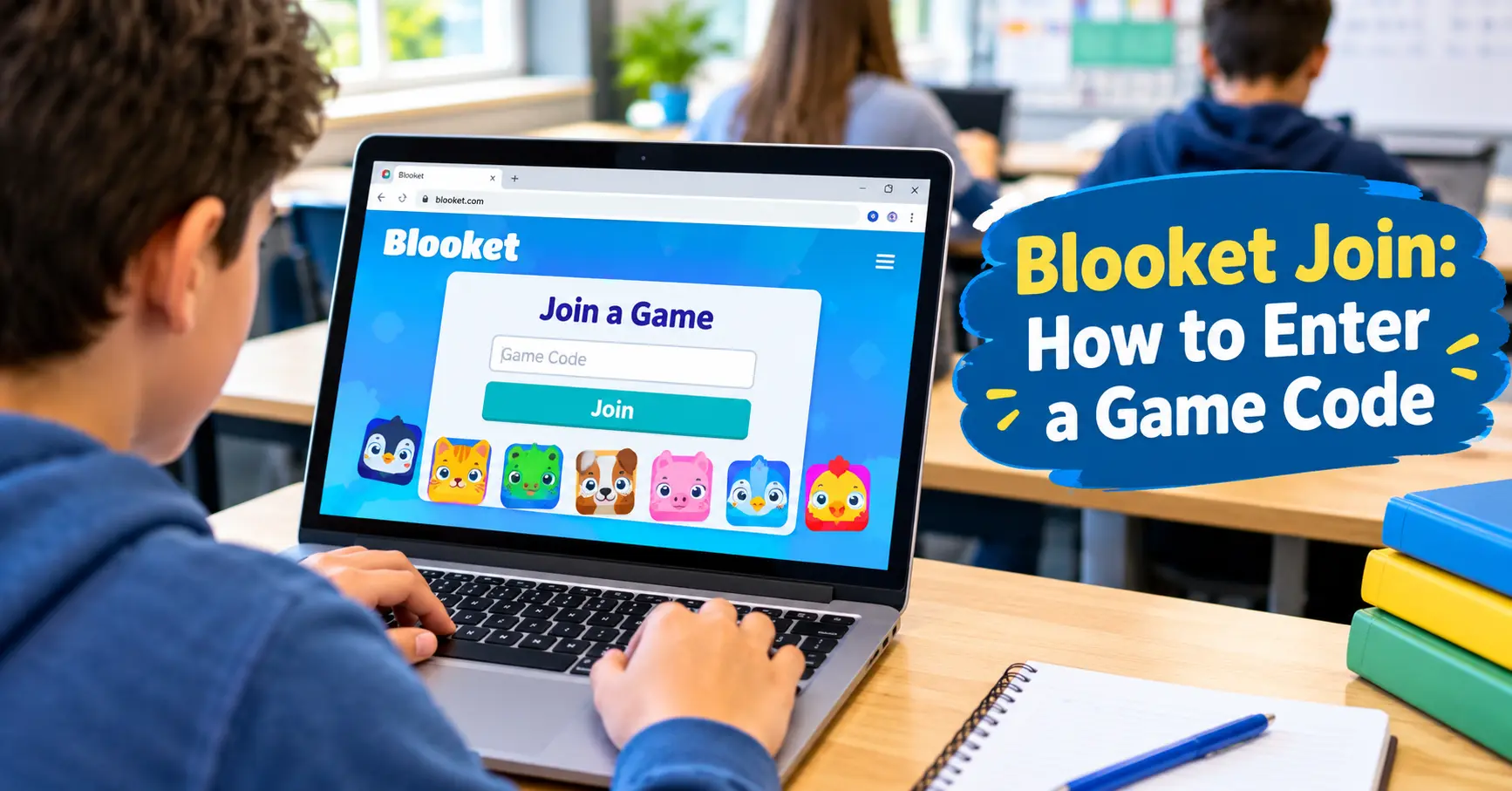
Your teacher just wrote a six-digit code on the board, and half the class already looks lost. You’re not alone — “Blooket Join” is one of the most searched phrases in classrooms right now, and honestly, the confusion usually comes down to landing on the wrong page.
I’ve walked dozens of students through this exact problem, and it almost always fixes itself in under a minute once you know where to click. This guide covers the actual Blooket Join steps, what to do when your code doesn’t work, and a few things competitors’ guides tend to skip entirely.
What Is Blooket Join?
Blooket Join is simply the process of entering a live Blooket game using a code your teacher or host gives you. It’s not a separate app or a login — it’s a specific webpage (play.blooket.com) built only for players joining a session.
Here’s where people trip up: Blooket has two different sites. One is for teachers who build and host games. The other — the join page — is for players. If you land on a screen asking for an email and password, you’re in the wrong place. Players don’t need an account at all for a standard live game.
The code itself is called a Game ID. It’s usually six or seven digits, and it belongs to one specific game session. That’s why a code your friend used last week won’t work today — every session generates a brand-new one.
How to Join a Blooket Game (Step-by-Step)
- Open play.blooket.com on any phone, Chromebook, tablet, or laptop.
- Enter the Game ID your host shared — double-check every digit.
- Type a nickname. Some hosts set rules here, so follow their instructions.
- Pick a Blook. This is your in-game avatar; it has zero effect on gameplay.
- Wait in the lobby until the host starts the round.
That’s the whole process. No downloads, no verification emails, nothing to install.
Joining Without a Code: QR Codes and Direct Links
Not every teacher writes a number on the board, and this is the part a lot of guides gloss over.
- QR code: If your host displays one, just open your phone’s camera app and point it at the screen. A notification pops up, and tapping it drops you straight onto the join page with the code already filled in.
- Direct join link: If your teacher pastes a link into Google Classroom, Slack, or an email, clicking it skips the code entirely and takes you right into the lobby.
- Public games: Occasionally a host makes a game open to anyone, which shows up as joinable without a code at all.
I’ve found the QR method is genuinely faster on phones — you shave off the step of typing seven digits on a tiny keyboard.
Common Mistakes to Avoid
- Typing the code on the wrong site. Entering it on blooket.com (the main site) instead of play.blooket.com is the single most common error.
- Waiting too long to enter it. Codes are tied to that one session, so if the host closes the game, the code stops working immediately — even if it “looks” the same.
- Mistyping a digit. A 6 and an 8, or a 0 and an O, get swapped constantly. Re-read the code before hitting submit.
- Assuming you need an account. You don’t, unless you specifically want to save stats or use homework mode.
What to Do When a Blooket Code Doesn’t Work
This happens more than any guide admits, so here’s the actual troubleshooting order:
- Re-check the code. Ask the host to repeat it or hold up the screen again.
- Confirm the game hasn’t ended. Once a host closes a session, that ID dies with it.
- Check the player limit. Some game modes cap participants, and a full lobby will bounce you.
- Refresh the page. A stuck load screen is often just a browser hiccup.
- Ask for a fresh code. If nothing works, the host likely needs to start a new session — old codes genuinely can’t be revived.
I’ve seen students spend five minutes panicking over a code that just needed a page refresh, so try that first.
Best Practices for a Smooth Join
- Use Chrome or Safari — they tend to load the join screen fastest.
- Keep your device volume on if the game includes sound effects; some quiz modes use audio cues.
- Don’t close the tab or switch apps once you’re in the lobby — it can boot you out and force a rejoin.
- If you’re on shared school Wi-Fi, join a few minutes early; class networks slow down right before a session starts.
Real Example
A 7th-grade science teacher I spoke with runs Blooket at the start of every Friday review. She projects a QR code instead of typing the number, and says it cuts “who’s not in yet?” delays from about four minutes down to under one — mainly because students stop mistyping digits.
Blooket Join FAQ,S
Do I need a Blooket account to join a game?
No. Guest mode lets you join any live game with just a code and nickname. An account only matters if you want to save progress or use homework assignments.
How long is a Blooket join code valid?
Only as long as that specific game session stays open. Once the host ends it, the code is dead for good — there’s no reactivating it.
Can I join Blooket on my phone?
Yes. Blooket runs fully in a mobile browser, so there’s nothing to download or install.
What’s the difference between blooket.com and play.blooket.com?
blooket.com is for teachers creating and hosting games. play.blooket.com is strictly for players entering a live session with a code.
Does my choice of Blook affect gameplay?
No. All Blooks are cosmetic avatars — none of them change your scoring or performance.
Can I join without a code at all?
Sometimes. If a host shares a direct join link or makes their game public, you can enter without typing anything.
Why does it say the game is full?
Some hosts set a player cap. If the lobby’s full, ask them to raise the limit or start a second session.
Final Thoughts
Blooket Join really comes down to three things: the right page (play.blooket.com), a correct code, and a little patience if that code doesn’t work on the first try. Most login troubles are a wrong-site mixup or an expired session — not anything broken on your end.
Next time your teacher shares a code, you’ll know exactly where to type it and how to fix it fast if something goes sideways.